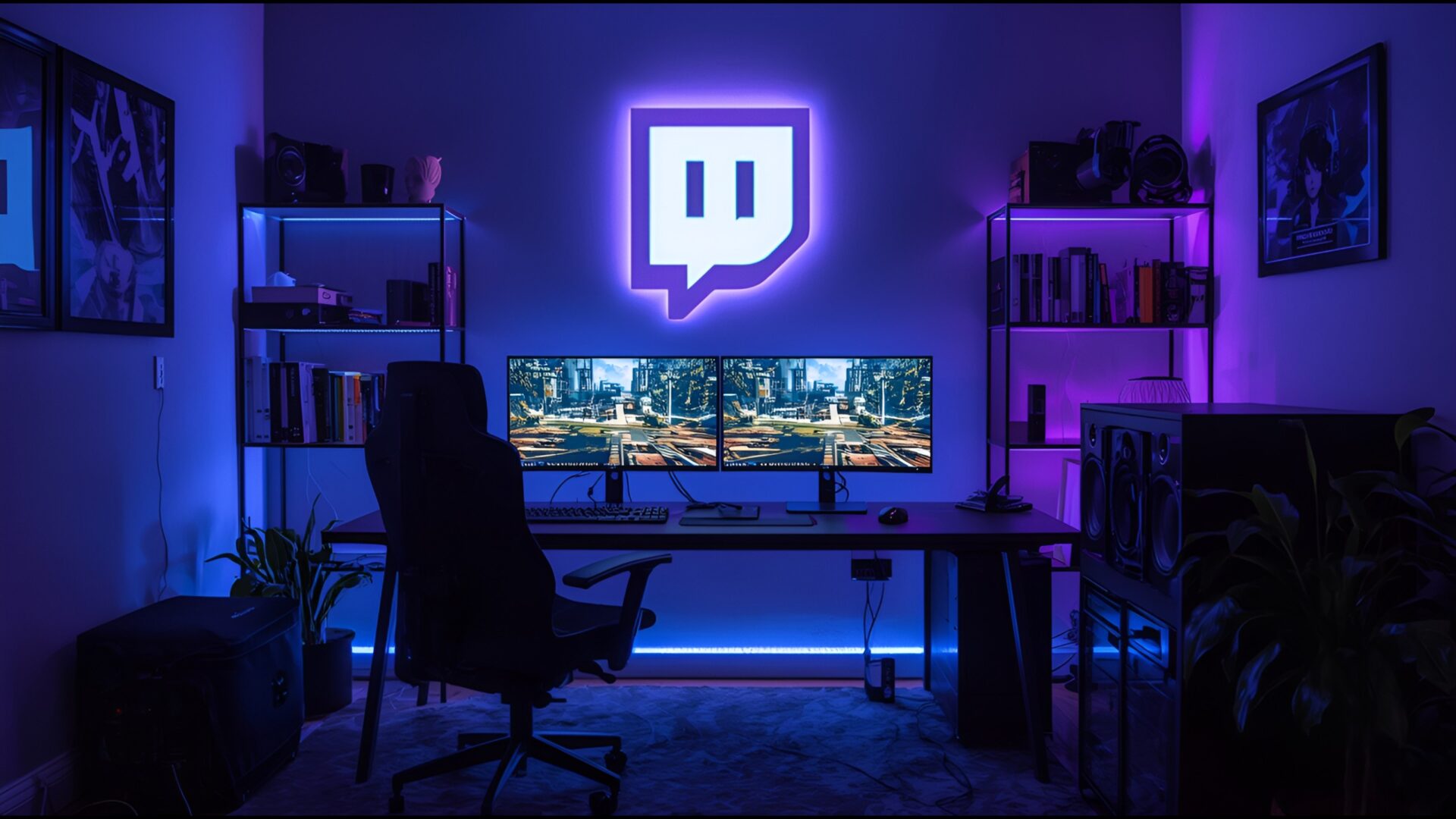
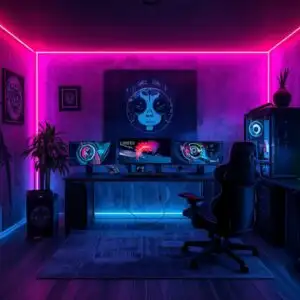
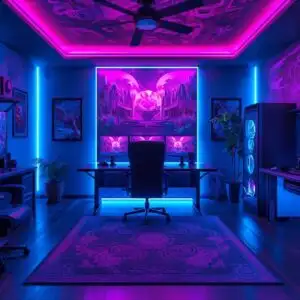
🕹️ Twitch Streamer Room Dual Monitor Setup 2K QHD (2560x1440) Wallpaper

❤ Share this wallpaper:
WhatsApp Facebook Twitter / X Pinterest LinkedIn Copy Link for Instagram Telegram Reddit Email



💡 Below is relevant information on how to install wallpapers on different devices 👇
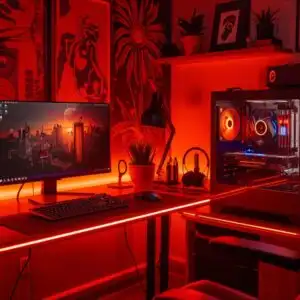
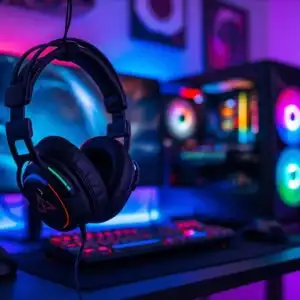
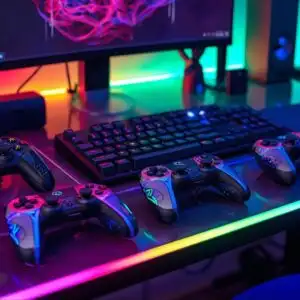
This 4K wallpaper is the best choice for testing your OLED professional display resolution. Compared to others, our high-performance tool provides a premium look for any high-end smartphone or desktop setup.
"Personalize this wallpaper or upload your own image to create the perfect mobile background 👇"
Customize Twitch Streamer Room Dual Monitor Setup for Mobile Wallpapers
iPhone • Samsung • Xiaomi • Google Pixel • Android • Huawei • (Others)
720×1600 • 1080×1920 • 1080×2340 • 1080×2400 • 1284×2778 • 1440×3088Please use Portrait Mode for a better experience (Optional)
Overview – Twitch Streamer Room Dual Monitor Setup
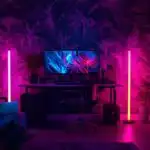
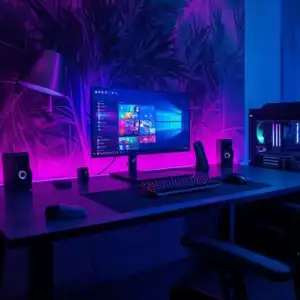
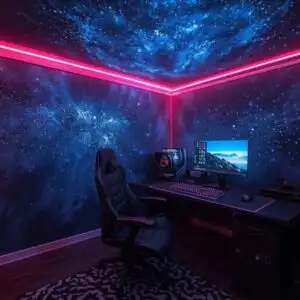
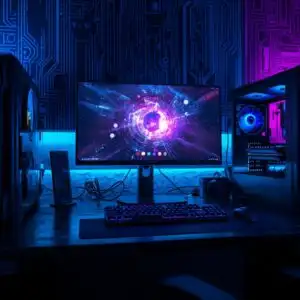
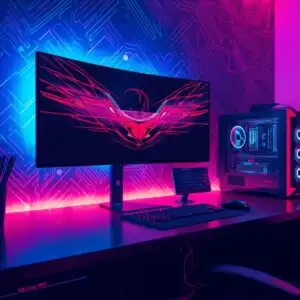
“Twitch Streamer Room Dual Monitor Setup” provides a glimpse into a meticulously arranged workspace, ideal for those seeking inspiration to personalize your desktop with a clean and functional aesthetic. This HD wallpaper captures the essence of a modern streamer’s environment, showcasing a dual monitor setup that maximizes productivity and immersion. The high resolution of 2560×1440 ensures that every detail is crisp and clear, making it a visually pleasing desktop background.
The composition focuses on the organized arrangement of the room, highlighting the importance of a clutter-free workspace for optimal performance. It is an HD Image that emphasizes clean lines and a minimalist approach, creating a sense of calm and focus. The dual monitors are the centerpiece, suggesting a professional and dedicated streaming environment. This stylish HD artwork is more than just a decorative element; it’s a visual representation of a streamer’s dedication to their craft.
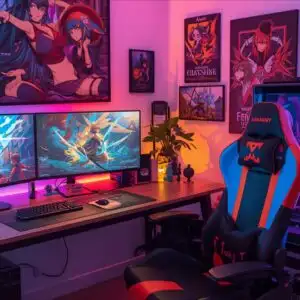
For those looking to add a touch of anime flair to their digital space, while maintaining a professional look, this wallpaper offers a subtle nod to the gaming community. The overall theme revolves around functionality and visual appeal, demonstrating how a streamer’s room can be both practical and aesthetically pleasing. Consider this HD wallpaper if you are looking to elevate your desktop experience with a high resolution image. The “Twitch Streamer Room Dual Monitor Setup” is a testament to the power of a well-designed workspace.
Wallpaper license: CC BY-NC-ND 4.0 · Credit: HDPeek.com
Remove Black Bars | Fit to Any Screen Size | CSS Fixer & Minifier | Compress Image Online | Image Converter Online | What Is My Screen Resolution? | Wallpaper Upscaler Online
Explore Categories
💡 How to Install Wallpaper on Different Devices
Windows PC:
Right-click on the wallpaper image. Select "Set as desktop background" or "Set as wallpaper". Adjust the fit (Fill, Fit, Stretch, Tile, Center) in Settings > Personalization > Background.Mac:
Right-click on the wallpaper image. Select "Set Desktop Picture". Alternatively, go to System Preferences > Desktop & Screen Saver and choose your image.iPhone / iPad (iOS):
Open the wallpaper image in Photos. Tap the Share button and select "Use as Wallpaper". Move and scale the image, then tap "Set" > Choose "Set Lock Screen", "Set Home Screen", or "Set Both".Android:
Open the wallpaper image in your Gallery app. Tap the Menu or Options button, then select "Set as wallpaper". Choose Home screen, Lock screen, or Both. Adjust the crop if needed and confirm.Linux (Ubuntu / others):
Right-click on the wallpaper image. Select "Set as Desktop Background" or "Set as Wallpaper". Adjust settings if your desktop environment allows multiple monitors.
Tips:
- For best quality, download the image in the resolution that matches your screen.
- Use 16:9 for widescreens, 1:1 for square displays.
- On mobile devices, choose "Set Both" for a consistent look on Home and Lock screens.
