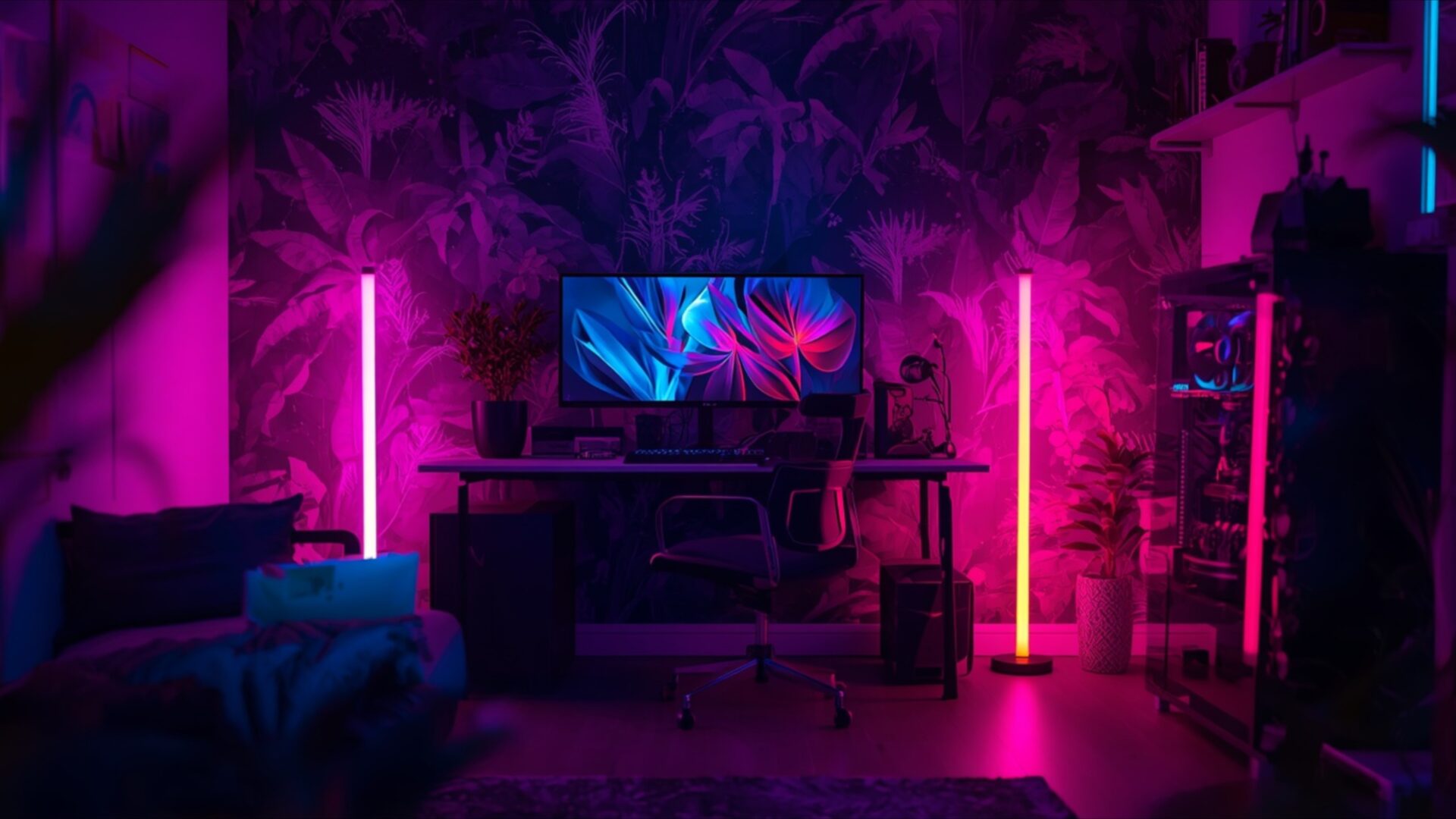
🕹️ RGB Floor Lamps in Gamer Room 4K UHD (3840x2160) Wallpaper

❤ Share this wallpaper:
WhatsApp Facebook Twitter / X Pinterest LinkedIn Copy Link for Instagram Telegram Reddit Email



💡 Below is relevant information on how to install wallpapers on different devices 👇
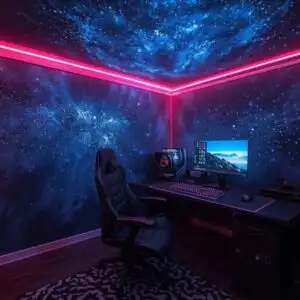
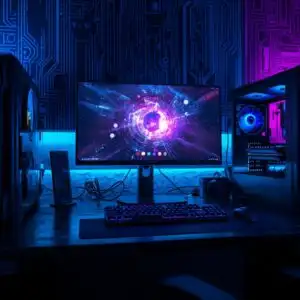
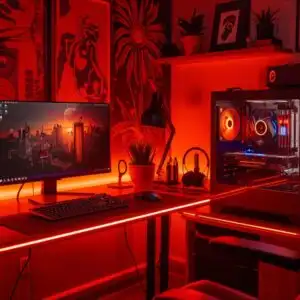
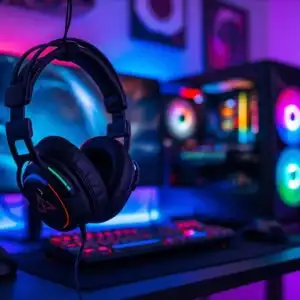
This 4K wallpaper is the best choice for testing your OLED professional display resolution. Compared to others, our high-performance tool provides a premium look for any high-end smartphone or desktop setup.



"Personalize this wallpaper or upload your own image to create the perfect mobile background 👇"
Customize RGB Floor Lamps in Gamer Room for Mobile Wallpapers
iPhone • Samsung • Xiaomi • Google Pixel • Android • Huawei • (Others)
720×1600 • 1080×1920 • 1080×2340 • 1080×2400 • 1284×2778 • 1440×3088Please use Portrait Mode for a better experience (Optional)
Overview – RGB Floor Lamps in Gamer Room
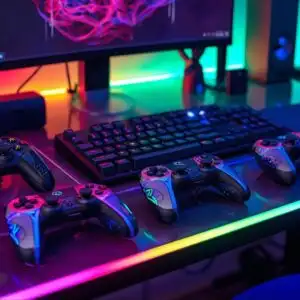
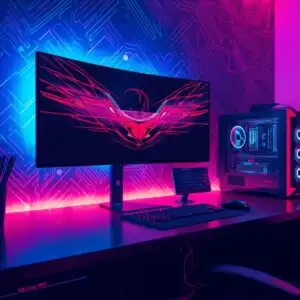
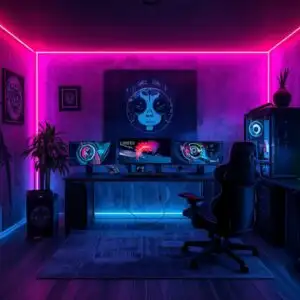
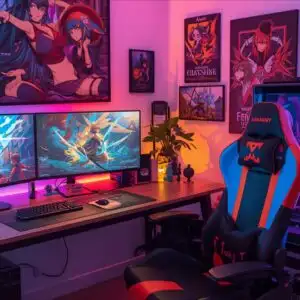
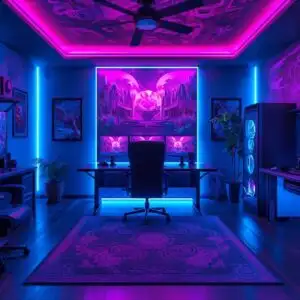
RGB Floor Lamps in Gamer Room sets the scene for a vibrant Gaming & Esports space, showcasing a striking visual theme. The image captures a room bathed in the electric glow of RGB floor lamps, casting a dynamic interplay of magenta and orange light across the surfaces. Two tall, slender lamps flank a desk, their illumination creating vertical streaks of color that contrast with the darker, textured wallpaper featuring a tropical leaf pattern. The lighting is atmospheric, with the neon glow defining the edges of furniture and creating a sense of depth. A large monitor on the desk displays a colorful, abstract graphic, further enhancing the room’s energetic ambiance. The overall mood is one of focused immersion, ideal for extended gaming sessions. This scene composition highlights how strategic lighting can transform a functional space into an engaging environment. The careful placement of the lamps suggests an intentional design, aiming to enhance the visual experience of the room.
The deep blues and purples of the monitor’s display blend seamlessly with the ambient light, creating a cohesive and immersive visual experience. Shadows are cast softly, avoiding harsh contrasts and contributing to the room’s inviting, yet stimulating, atmosphere. The furniture, including a couch and the desk itself, are rendered in silhouette or with subtle highlights, allowing the vibrant lighting to be the primary focus. This aesthetic layout emphasizes the modern, tech-centric nature of the setup. The image itself is a testament to the power of color and light in shaping perception and mood. The contrast between the dark, patterned wallpaper and the bright, artificial light sources is particularly effective. It’s a visual narrative of a dedicated gaming sanctuary, meticulously crafted for both performance and visual appeal.
This high-resolution image, presented in 3840×2160, offers incredible detail, making it a perfect desktop background for your PC. The vibrant colors and dynamic lighting are rendered with exceptional clarity, ensuring that every nuance of the scene is visible. For those seeking to enhance their digital workspace, this visual theme provides a captivating and inspiring aesthetic. You can download this wallpaper to bring the electric energy of a gamer’s paradise to your monitor. We also offer this stunning visual in 4K, 2K, and Full HD resolutions, ensuring compatibility with a wide range of devices, including your laptop wallpaper and mobile background. RGB Floor Lamps in Gamer Room is ready for your instant download.
Wallpaper license: CC BY-NC-ND 4.0 · Credit: HDPeek.com
Remove Black Bars | Fit to Any Screen Size | CSS Fixer & Minifier | Compress Image Online | Image Converter Online | What Is My Screen Resolution? | Wallpaper Upscaler Online
Explore Categories
💡 How to Install Wallpaper on Different Devices
Windows PC:
Right-click on the wallpaper image. Select "Set as desktop background" or "Set as wallpaper". Adjust the fit (Fill, Fit, Stretch, Tile, Center) in Settings > Personalization > Background.Mac:
Right-click on the wallpaper image. Select "Set Desktop Picture". Alternatively, go to System Preferences > Desktop & Screen Saver and choose your image.iPhone / iPad (iOS):
Open the wallpaper image in Photos. Tap the Share button and select "Use as Wallpaper". Move and scale the image, then tap "Set" > Choose "Set Lock Screen", "Set Home Screen", or "Set Both".Android:
Open the wallpaper image in your Gallery app. Tap the Menu or Options button, then select "Set as wallpaper". Choose Home screen, Lock screen, or Both. Adjust the crop if needed and confirm.Linux (Ubuntu / others):
Right-click on the wallpaper image. Select "Set as Desktop Background" or "Set as Wallpaper". Adjust settings if your desktop environment allows multiple monitors.
Tips:
- For best quality, download the image in the resolution that matches your screen.
- Use 16:9 for widescreens, 1:1 for square displays.
- On mobile devices, choose "Set Both" for a consistent look on Home and Lock screens.
