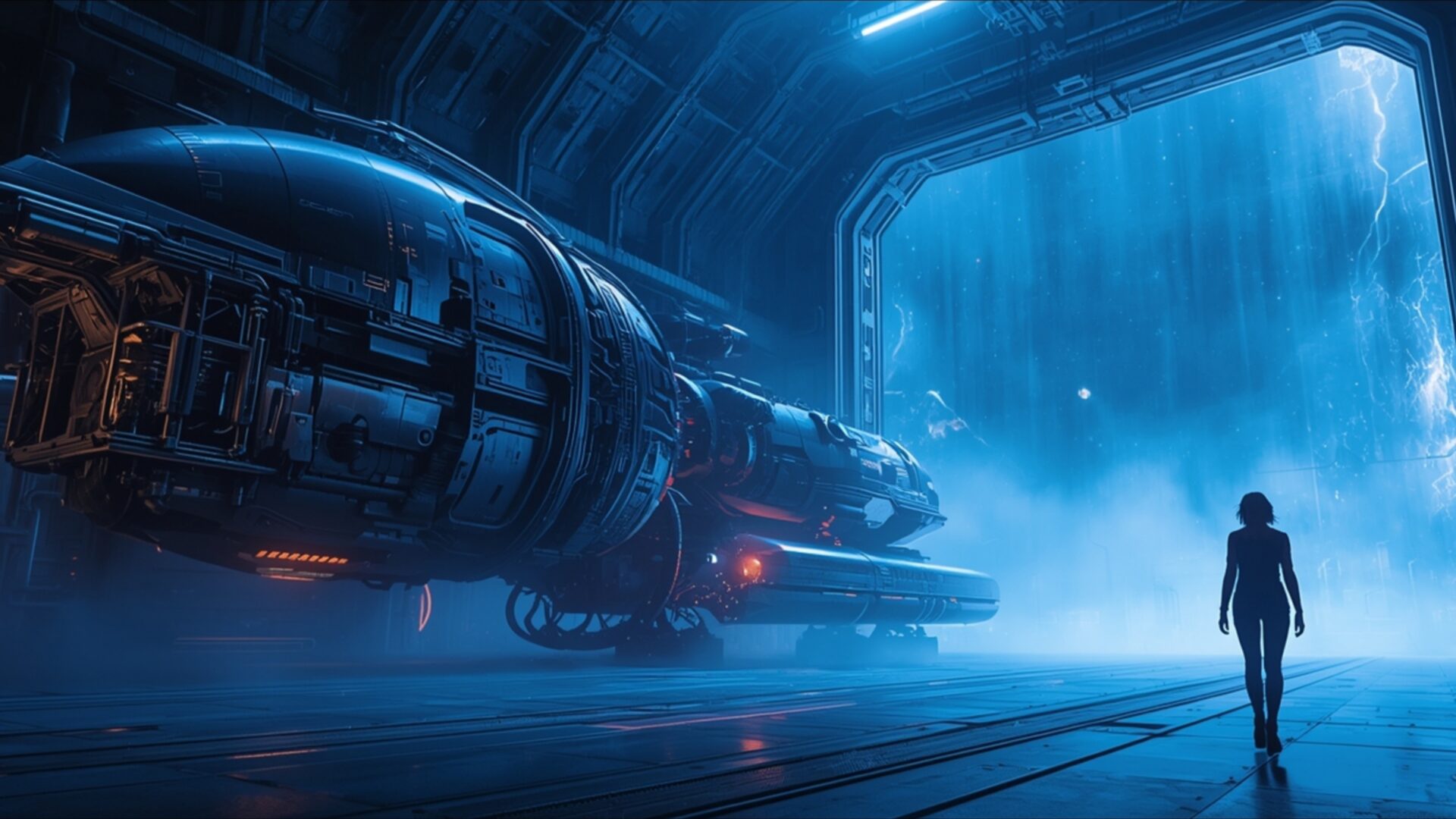
👽️ Ripley Walking Through Atmospheric Alien Hangar 4K UHD (3840x2160) Wallpaper


❤ Share this wallpaper:
WhatsApp Facebook Twitter / X Pinterest LinkedIn Copy Link for Instagram Telegram Reddit Email





💡 Below is relevant information on how to install wallpapers on different devices 👇






This 4K wallpaper is the best choice for testing your OLED professional display resolution. Compared to others, our high-performance tool provides a premium look for any high-end smartphone or desktop setup.






"Personalize this wallpaper or upload your own image to create the perfect mobile background 👇"
Customize Ripley Walking Through Atmospheric Alien Hangar for Mobile Wallpapers
iPhone • Samsung • Xiaomi • Google Pixel • Android • Huawei • (Others)
720×1600 • 1080×1920 • 1080×2340 • 1080×2400 • 1284×2778 • 1440×3088Please use Portrait Mode for a better experience (Optional)
Overview – Ripley Walking Through Atmospheric Alien Hangar
Ripley Walking Through Atmospheric Alien Hangar captures a moment of suspense from the Science Fiction category, presenting a scene steeped in tension and visual intrigue. The image immediately draws you into a futuristic ship environment, where the iconic heroine Ellen Ripley navigates a sci-fi hangar shrouded in mystery. The composition emphasizes the vastness of the hangar, using perspective to highlight Ripley’s solitary figure against the monumental scale of the alien vessel. The lighting plays a crucial role, casting long shadows and creating a moody light that enhances the atmosphere of uncertainty.
The scene composition is carefully constructed to evoke a sense of unease, with the blue fog adding to the ethereal and otherworldly quality of the setting. It is a stylish HD artwork that uses color sparingly but effectively, the cool blues and grays contrasting with the implied warmth of the ship’s interior. The visual theme centers around the anticipation of the unknown, as Ripley ventures deeper into the alien saga. This is a desktop background that invites contemplation, offering a glimpse into a world where technology and the extraterrestrial collide.
The 3840×2160 resolution ensures that every detail, from the texture of Ripley’s clothing to the intricate design of the futuristic ship, is rendered with clarity. The high-resolution image allows for a truly immersive experience, making it ideal as a PC wallpaper. The way the light interacts with the fog creates depth and dimension, drawing the viewer further into the scene. It’s a powerful image that speaks to the enduring appeal of the alien saga and the strength of its heroine icon. The artist has masterfully used light and shadow to create a tension scene that resonates with viewers long after they’ve seen it.
If you are looking to personalize your desktop, this wallpaper offers a unique and compelling option. The aesthetic layout is designed to be visually appealing without being distracting, making it suitable for both work and leisure. It is a mobile background that transforms your device into a portal to another world, offering a daily dose of science fiction intrigue. The level of detail in the 4k wallpaper version is particularly striking, revealing nuances that might be missed in lower resolutions.
This is a great opportunity to download wallpaper and transform your computer screen background with this striking image. The availability of this image extends to various devices, making it suitable as a laptop wallpaper or even a tablet background. For those seeking slightly smaller file sizes without sacrificing too much detail, 2K and Full HD versions are also readily available, ensuring a perfect fit for any screen size. Ripley Walking Through Atmospheric Alien Hangar is a compelling visual experience available for quick download.
Wallpaper license: CC BY-NC-ND 4.0 · Credit: HDPeek.com
Remove Black Bars | Fit to Any Screen Size | CSS Fixer & Minifier | Compress Image Online | Image Converter Online | What Is My Screen Resolution? | Wallpaper Upscaler Online
Explore Categories
💡 How to Install Wallpaper on Different Devices
Windows PC:
Right-click on the wallpaper image. Select "Set as desktop background" or "Set as wallpaper". Adjust the fit (Fill, Fit, Stretch, Tile, Center) in Settings > Personalization > Background.Mac:
Right-click on the wallpaper image. Select "Set Desktop Picture". Alternatively, go to System Preferences > Desktop & Screen Saver and choose your image.iPhone / iPad (iOS):
Open the wallpaper image in Photos. Tap the Share button and select "Use as Wallpaper". Move and scale the image, then tap "Set" > Choose "Set Lock Screen", "Set Home Screen", or "Set Both".Android:
Open the wallpaper image in your Gallery app. Tap the Menu or Options button, then select "Set as wallpaper". Choose Home screen, Lock screen, or Both. Adjust the crop if needed and confirm.Linux (Ubuntu / others):
Right-click on the wallpaper image. Select "Set as Desktop Background" or "Set as Wallpaper". Adjust settings if your desktop environment allows multiple monitors.
Tips:
- For best quality, download the image in the resolution that matches your screen.
- Use 16:9 for widescreens, 1:1 for square displays.
- On mobile devices, choose "Set Both" for a consistent look on Home and Lock screens.
