🕹️ RGB Gaming Setup With Dual Monitors 4K UHD (3840x2160) Wallpaper

❤ Share this wallpaper:
WhatsApp Facebook Twitter / X Pinterest LinkedIn Copy Link for Instagram Telegram Reddit Email



💡 Below is relevant information on how to install wallpapers on different devices 👇
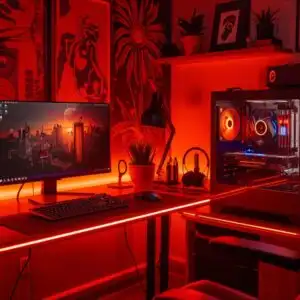
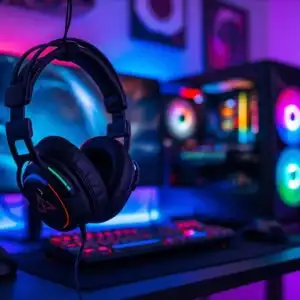
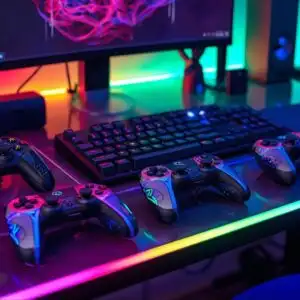
This 4K wallpaper is the best choice for testing your OLED professional display resolution. Compared to others, our high-performance tool provides a premium look for any high-end smartphone or desktop setup.
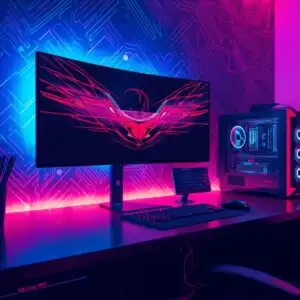
"Personalize this wallpaper or upload your own image to create the perfect mobile background 👇"
Customize RGB Gaming Setup With Dual Monitors for Mobile Wallpapers
iPhone • Samsung • Xiaomi • Google Pixel • Android • Huawei • (Others)
720×1600 • 1080×1920 • 1080×2340 • 1080×2400 • 1284×2778 • 1440×3088Please use Portrait Mode for a better experience (Optional)
Overview – RGB Gaming Setup With Dual Monitors
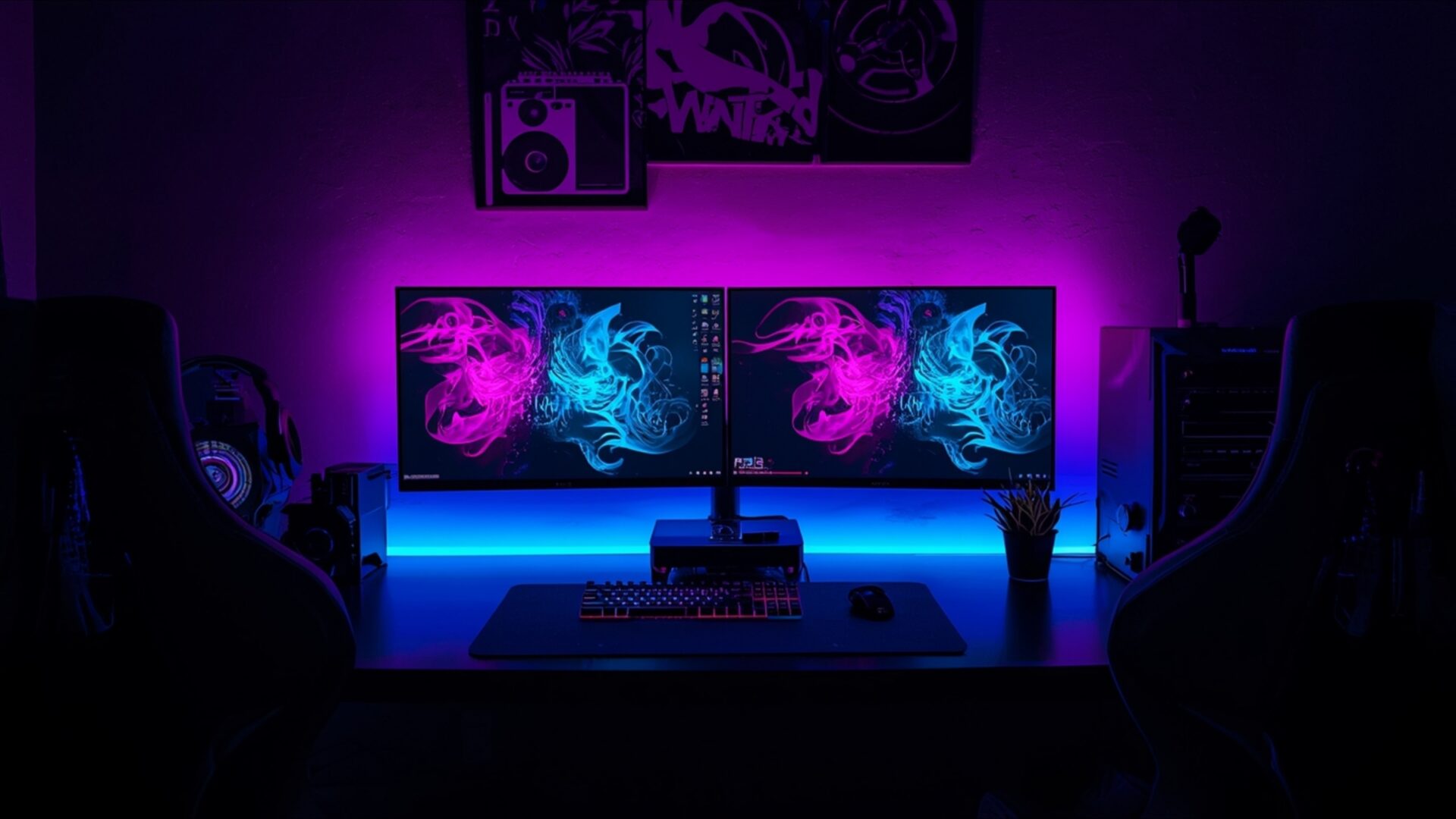
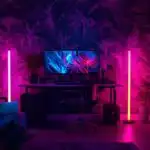
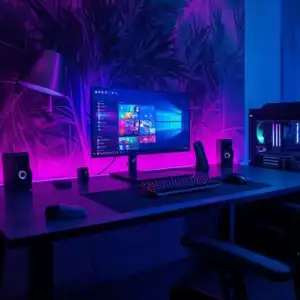
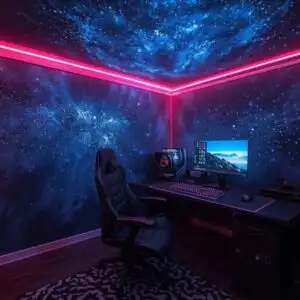
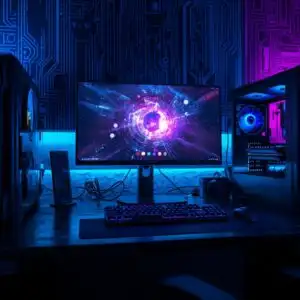
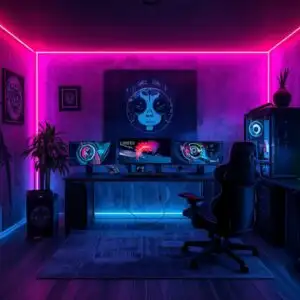
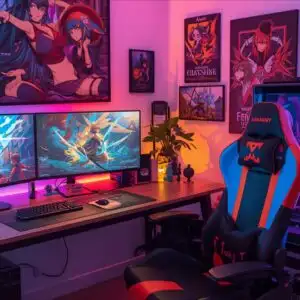
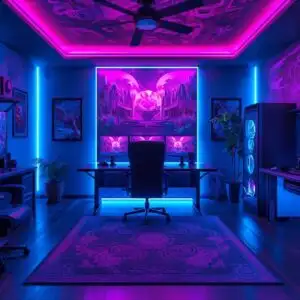
RGB Gaming Setup With Dual Monitors brings the vibrant energy of the Gaming & Esports category to your screen, showcasing a meticulously arranged scene composition bathed in neon light. This desktop background captures a modern gamer room, focusing on the interplay of light and shadow across the various elements. The dual monitors dominate the view, their screens reflecting a soft glow that illuminates the surrounding gaming gear.
The stylish HD artwork emphasizes the depth of field, drawing the eye to the central focus: the meticulously organized PC desk. Notice how the RGB lights cast a spectrum of colors, creating a dynamic and immersive atmosphere. The composition is carefully balanced, with each component contributing to the overall aesthetic layout. From the subtle textures of the desk surface to the smooth finish of the monitor frames, every detail is rendered with clarity in this high-resolution image.
Consider the way the neon glow interacts with the surrounding surfaces, creating a sense of depth and dimension. The arrangement of the gaming setup suggests a space designed for both functionality and visual appeal. It’s a digital canvas that reflects the passion and dedication of the modern gamer. The dual monitor setup not only enhances the gaming experience but also serves as a statement piece, reflecting a commitment to performance and style.
This computer screen background offers a glimpse into a world where technology and artistry converge. The strategic placement of each item, from the keyboard and mouse to the various peripherals, contributes to a sense of order and control. The RGB lighting isn’t just for show; it’s an integral part of the overall design, enhancing the visual experience and creating a truly immersive environment. The 3840×2160 resolution ensures that every detail is crisp and clear, making it an ideal choice to personalize your desktop.
Imagine this scene as your new laptop wallpaper, transforming your workspace into a portal to the gaming world. It’s more than just a phone background; it’s a statement of your passion for gaming and technology. Get it now and instantly elevate the look of your devices with this dynamic and visually stunning scene. You can download wallpaper in various resolutions, including a pristine 4K wallpaper version for the sharpest display, as well as 2K and Full HD options to suit different screen sizes and preferences. Experience the RGB Gaming Setup With Dual Monitors in its full glory.
Wallpaper license: CC BY-NC-ND 4.0 · Credit: HDPeek.com
Remove Black Bars | Fit to Any Screen Size | CSS Fixer & Minifier | Compress Image Online | Image Converter Online | What Is My Screen Resolution? | Wallpaper Upscaler Online
Explore Categories
💡 How to Install Wallpaper on Different Devices
Windows PC:
Right-click on the wallpaper image. Select "Set as desktop background" or "Set as wallpaper". Adjust the fit (Fill, Fit, Stretch, Tile, Center) in Settings > Personalization > Background.Mac:
Right-click on the wallpaper image. Select "Set Desktop Picture". Alternatively, go to System Preferences > Desktop & Screen Saver and choose your image.iPhone / iPad (iOS):
Open the wallpaper image in Photos. Tap the Share button and select "Use as Wallpaper". Move and scale the image, then tap "Set" > Choose "Set Lock Screen", "Set Home Screen", or "Set Both".Android:
Open the wallpaper image in your Gallery app. Tap the Menu or Options button, then select "Set as wallpaper". Choose Home screen, Lock screen, or Both. Adjust the crop if needed and confirm.Linux (Ubuntu / others):
Right-click on the wallpaper image. Select "Set as Desktop Background" or "Set as Wallpaper". Adjust settings if your desktop environment allows multiple monitors.
Tips:
- For best quality, download the image in the resolution that matches your screen.
- Use 16:9 for widescreens, 1:1 for square displays.
- On mobile devices, choose "Set Both" for a consistent look on Home and Lock screens.
