👽️ Rocket Raccoon Aiming Blaster in Neon Alley 4K UHD (3840x2160) Wallpaper

❤ Share this wallpaper:
WhatsApp Facebook Twitter / X Pinterest LinkedIn Copy Link for Instagram Telegram Reddit Email



💡 Below is relevant information on how to install wallpapers on different devices 👇



This 4K wallpaper is the best choice for testing your OLED professional display resolution. Compared to others, our high-performance tool provides a premium look for any high-end smartphone or desktop setup.


"Personalize this wallpaper or upload your own image to create the perfect mobile background 👇"
Customize Rocket Raccoon Aiming Blaster in Neon Alley for Mobile Wallpapers
iPhone • Samsung • Xiaomi • Google Pixel • Android • Huawei • (Others)
720×1600 • 1080×1920 • 1080×2340 • 1080×2400 • 1284×2778 • 1440×3088Please use Portrait Mode for a better experience (Optional)
Overview – Rocket Raccoon Aiming Blaster in Neon Alley
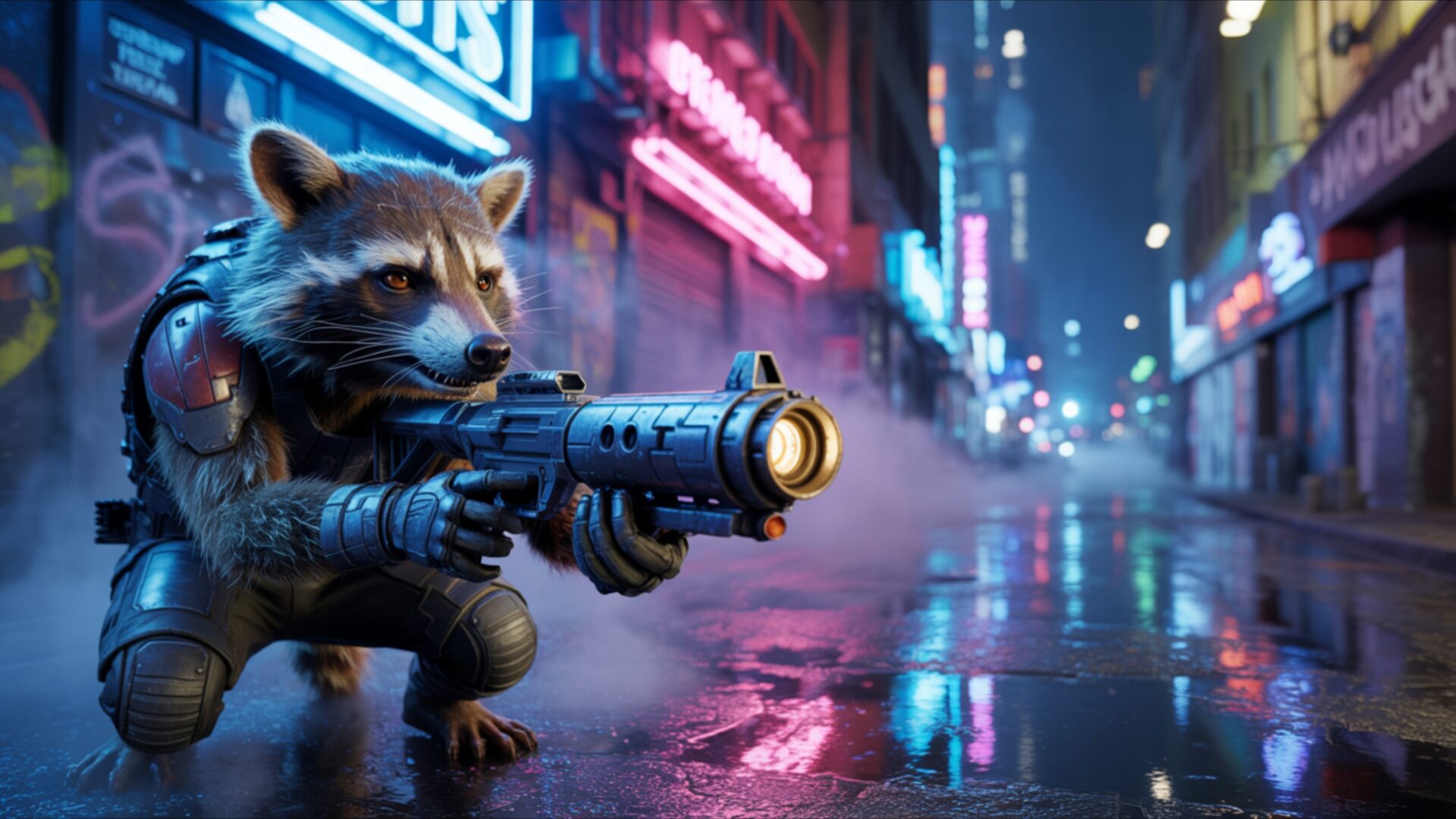
Rocket Raccoon Aiming Blaster in Neon Alley captures the essence of the Science Fiction category with its vibrant colors and dynamic composition. This image presents Rocket Raccoon in a dramatic pose, blaster ready, set against a futuristic urban landscape bathed in a blue glow. The scene composition immediately draws the viewer into a world of sci-fi action, reminiscent of the Guardians of the Galaxy universe.
The 3840×2160 resolution ensures that every detail, from the intricate design of Rocket’s gear to the neon-lit alleyways, is rendered with exceptional clarity. It is a stylish HD artwork that transforms your computer screen background into a portal to another world. The neon alley itself is a character, its glowing signs and shadowy corners adding depth and intrigue to the overall aesthetic layout. The high-resolution detail allows you to appreciate the textures of Rocket’s fur and the metallic sheen of his blaster.
The blue glow emanating from the neon signs and Rocket’s weapon creates a captivating atmosphere. The lighting plays a crucial role in highlighting the contours of his form and emphasizing the intensity of his gaze. This isn’t just a static image; it’s a moment frozen in time, full of energy and anticipation. The futuristic urban setting provides a stark contrast to Rocket’s rugged appearance, creating a visually compelling juxtaposition. You can personalize your desktop with this striking visual theme.
The composition is carefully balanced, with Rocket Raccoon positioned to command attention, his blaster aimed with unwavering focus. The depth of field creates a sense of immersion, pulling you into the heart of the neon alley. The overall effect is one of dynamic energy and visual excitement, making it an ideal choice for a desktop background that demands attention. The availability of this 4k wallpaper ensures the highest quality viewing experience.
If you are looking to download wallpaper to revitalize your laptop wallpaper or give your mobile background a futuristic edge, this is an excellent choice. It is available as a free wallpaper, offering an instant download to transform your digital space. Get it now and experience the thrill of Rocket Raccoon Aiming Blaster in Neon Alley on your screen. For those seeking options for different devices, this striking image is also available in 2K and Full HD versions, ensuring a crisp and clear visual experience across a range of screen sizes.
Wallpaper license: CC BY-NC-ND 4.0 · Credit: HDPeek.com
Remove Black Bars | Fit to Any Screen Size | CSS Fixer & Minifier | Compress Image Online | Image Converter Online | What Is My Screen Resolution? | Wallpaper Upscaler Online
Explore Categories
💡 How to Install Wallpaper on Different Devices
Windows PC:
Right-click on the wallpaper image. Select "Set as desktop background" or "Set as wallpaper". Adjust the fit (Fill, Fit, Stretch, Tile, Center) in Settings > Personalization > Background.Mac:
Right-click on the wallpaper image. Select "Set Desktop Picture". Alternatively, go to System Preferences > Desktop & Screen Saver and choose your image.iPhone / iPad (iOS):
Open the wallpaper image in Photos. Tap the Share button and select "Use as Wallpaper". Move and scale the image, then tap "Set" > Choose "Set Lock Screen", "Set Home Screen", or "Set Both".Android:
Open the wallpaper image in your Gallery app. Tap the Menu or Options button, then select "Set as wallpaper". Choose Home screen, Lock screen, or Both. Adjust the crop if needed and confirm.Linux (Ubuntu / others):
Right-click on the wallpaper image. Select "Set as Desktop Background" or "Set as Wallpaper". Adjust settings if your desktop environment allows multiple monitors.
Tips:
- For best quality, download the image in the resolution that matches your screen.
- Use 16:9 for widescreens, 1:1 for square displays.
- On mobile devices, choose "Set Both" for a consistent look on Home and Lock screens.
