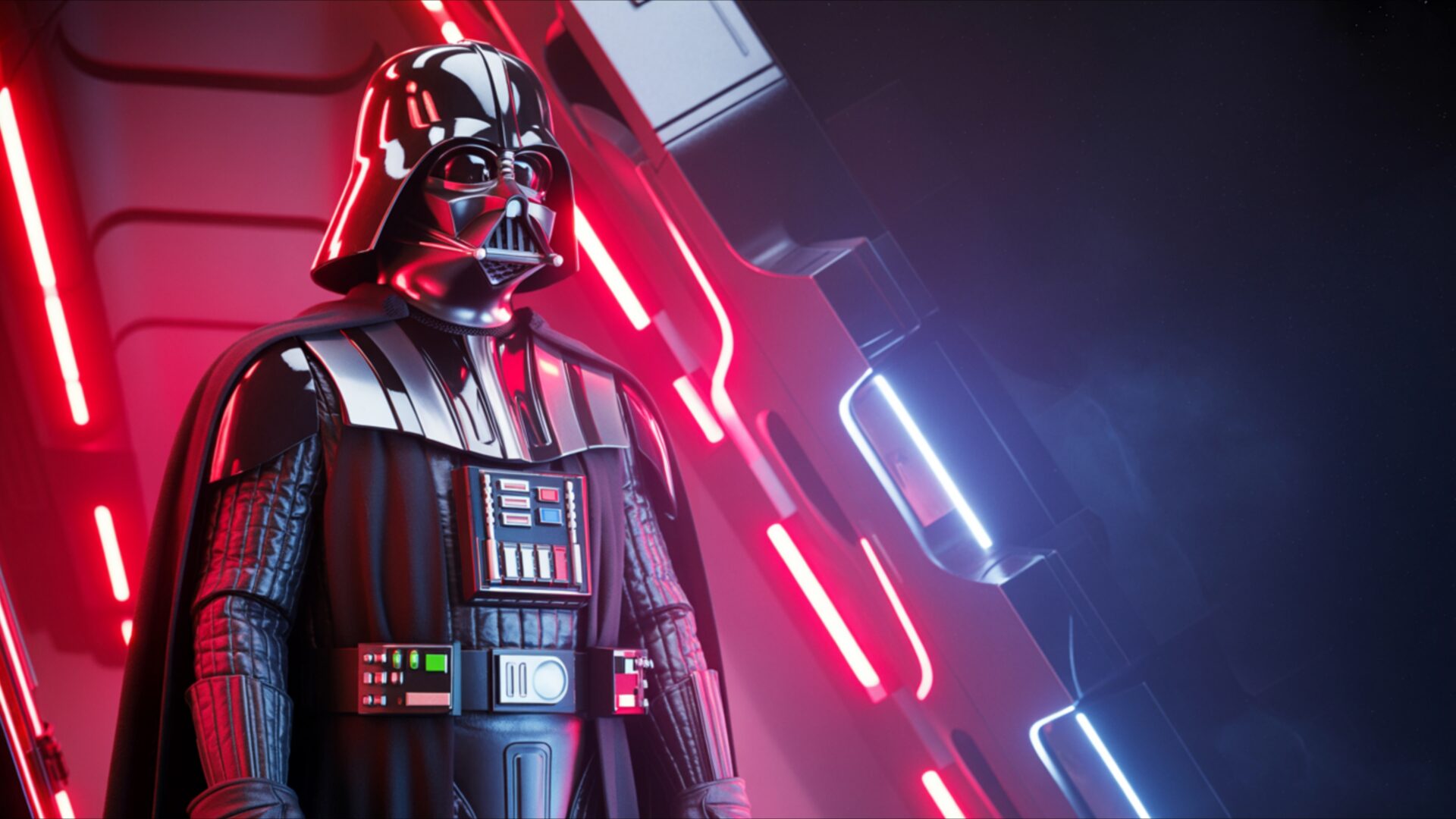
👽️ Darth Vader Under Red Imperial Lights 4K UHD (3840x2160) Wallpaper


❤ Share this wallpaper:
WhatsApp Facebook Twitter / X Pinterest LinkedIn Copy Link for Instagram Telegram Reddit Email





💡 Below is relevant information on how to install wallpapers on different devices 👇






This 4K wallpaper is the best choice for testing your OLED professional display resolution. Compared to others, our high-performance tool provides a premium look for any high-end smartphone or desktop setup.






"Personalize this wallpaper or upload your own image to create the perfect mobile background 👇"
Customize Darth Vader Under Red Imperial Lights for Mobile Wallpapers
iPhone • Samsung • Xiaomi • Google Pixel • Android • Huawei • (Others)
720×1600 • 1080×1920 • 1080×2340 • 1080×2400 • 1284×2778 • 1440×3088Please use Portrait Mode for a better experience (Optional)
Overview – Darth Vader Under Red Imperial Lights
Darth Vader Under Red Imperial Lights captures the essence of the Science Fiction category with its dramatic lighting and iconic character. This desktop background presents a powerful image of Darth Vader bathed in an ominous red glow, evoking the dark side of the Force. The scene composition emphasizes the imposing figure of the Sith Lord, set against a backdrop that suggests the might and reach of the Galactic Empire. The high-resolution detail brings out the texture of Vader’s armor and the subtle nuances of the red illumination, creating a visually striking experience for any fan of the Star Wars saga.
The visual theme centers on the interplay of light and shadow, enhancing the cinematic feel of the scene. Red light emanates from unseen sources, casting long, dramatic shadows that amplify the sense of foreboding. This aesthetic layout uses color to convey mood, with the dominant red hue symbolizing danger, power, and the ruthless efficiency of the Empire. The 3840×2160 resolution ensures that every detail is rendered with clarity, making it a compelling choice to personalize your desktop. The composition draws the eye to Darth Vader, the central figure, whose presence dominates the frame.
This 4k wallpaper transforms your computer screen background into a portal to a galaxy far, far away. The dark force is palpable, conveyed through the carefully crafted lighting and the imposing stance of Darth Vader. It is a stylish HD artwork that reflects the iconic imagery of Star Wars, appealing to those who appreciate the darker, more complex aspects of the franchise. The red glow not only illuminates Vader but also hints at the inner turmoil and conflict that define his character. The galactic sci-fi elements are subtly integrated, creating a sense of depth and scale that extends beyond the immediate scene.
If you are looking to get it now, this smartphone wallpaper offers a unique way to showcase your appreciation for the cinematic villain. The high-resolution quality ensures that even on smaller screens, the details remain crisp and clear. The image captures the essence of Darth Vader’s character, from his imposing physical presence to the subtle hints of his inner struggles. It is a powerful visual statement that resonates with fans of the Star Wars saga.
For those seeking a free wallpaper, multiple resolutions are available to suit various devices. You can download wallpaper in 2K and Full HD versions, ensuring compatibility with a wide range of screens, in addition to the stunning clarity of the 4K version of Darth Vader Under Red Imperial Lights.
Wallpaper license: CC BY-NC-ND 4.0 · Credit: HDPeek.com
Remove Black Bars | Fit to Any Screen Size | CSS Fixer & Minifier | Compress Image Online | Image Converter Online | What Is My Screen Resolution? | Wallpaper Upscaler Online
Explore Categories
💡 How to Install Wallpaper on Different Devices
Windows PC:
Right-click on the wallpaper image. Select "Set as desktop background" or "Set as wallpaper". Adjust the fit (Fill, Fit, Stretch, Tile, Center) in Settings > Personalization > Background.Mac:
Right-click on the wallpaper image. Select "Set Desktop Picture". Alternatively, go to System Preferences > Desktop & Screen Saver and choose your image.iPhone / iPad (iOS):
Open the wallpaper image in Photos. Tap the Share button and select "Use as Wallpaper". Move and scale the image, then tap "Set" > Choose "Set Lock Screen", "Set Home Screen", or "Set Both".Android:
Open the wallpaper image in your Gallery app. Tap the Menu or Options button, then select "Set as wallpaper". Choose Home screen, Lock screen, or Both. Adjust the crop if needed and confirm.Linux (Ubuntu / others):
Right-click on the wallpaper image. Select "Set as Desktop Background" or "Set as Wallpaper". Adjust settings if your desktop environment allows multiple monitors.
Tips:
- For best quality, download the image in the resolution that matches your screen.
- Use 16:9 for widescreens, 1:1 for square displays.
- On mobile devices, choose "Set Both" for a consistent look on Home and Lock screens.
