👽️ Apex Hunter Bot Targeting Through Red Holo Sight 4K UHD (3840x2160) Wallpaper
 Advanced Combat Drone Repairing Futuristic Battle Mech
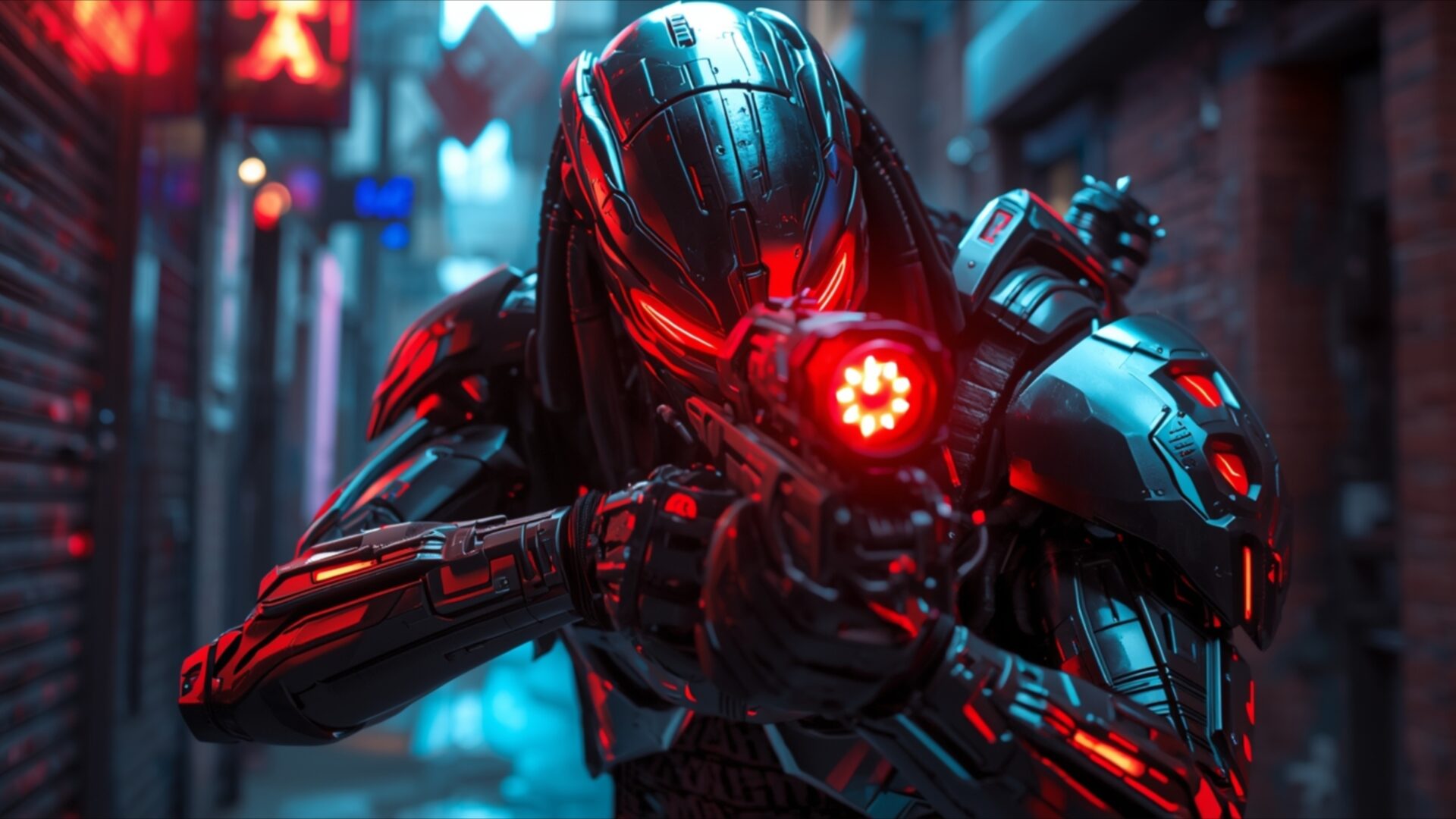
 Apex Hunter Bot Aiming Weapon in Neon Cyber Corridor
❤ Share this wallpaper:
WhatsApp Facebook Twitter / X Pinterest LinkedIn Copy Link for Instagram Telegram Reddit Email




💡 Below is relevant information on how to install wallpapers on different devices 👇




This 4K wallpaper is the best choice for testing your OLED professional display resolution. Compared to others, our high-performance tool provides a premium look for any high-end smartphone or desktop setup.
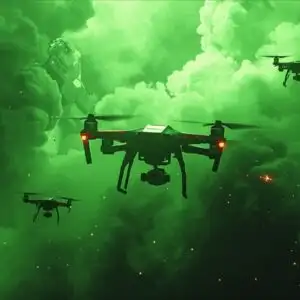

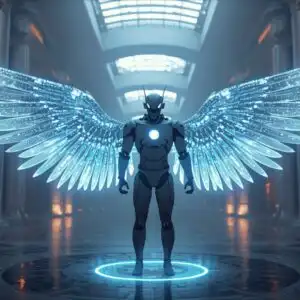
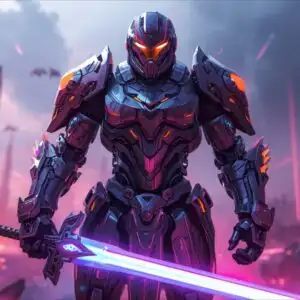
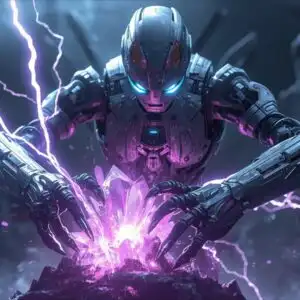

"Personalize this wallpaper or upload your own image to create the perfect mobile background 👇"
Customize Apex Hunter Bot Targeting Through Red Holo Sight for Mobile Wallpapers
iPhone • Samsung • Xiaomi • Google Pixel • Android • Huawei • (Others)
720×1600 • 1080×1920 • 1080×2340 • 1080×2400 • 1284×2778 • 1440×3088Please use Portrait Mode for a better experience (Optional)
Overview – Apex Hunter Bot Targeting Through Red Holo Sight
Apex Hunter Bot Targeting Through Red Holo Sight introduces a compelling science fiction visual theme. This striking image captures a formidable hunter bot, its metallic form detailed with intricate paneling and glowing red accents that suggest advanced technology. The bot is positioned in what appears to be a dimly lit, urban alleyway, with neon signs casting a cool, blueish light on the wet pavement and brick walls, creating a stark contrast with the fiery red emanating from the bot itself. The primary light source seems to originate from the bot’s own systems, particularly its targeting reticle and the glowing elements on its armor, bathing the immediate area in an intense, crimson glow.
The composition focuses on the bot’s menacing presence, with its head turned slightly towards the viewer, its weapon held steady. The red holographic sight on the weapon is a focal point, displaying a gear-like reticle that pulses with light, indicating its active targeting state. This element, along with the bot’s glowing red eyes, conveys a sense of imminent action and predatory intent. The overall mood is one of suspense and futuristic danger, amplified by the dark, atmospheric setting. The textures of the bot’s armor are rendered with a high degree of detail, showcasing a metallic sheen that reflects the surrounding lights.
This high-resolution image is perfect for anyone who appreciates detailed sci-fi aesthetics and a sense of technological menace. The interplay of light and shadow is expertly handled, drawing the eye to the bot’s glowing features and the sharp lines of its design. The scene composition effectively places the viewer in the perspective of someone observing this apex hunter in its element, ready to strike. The intricate design of the bot, from its segmented limbs to its helmeted head, speaks to a sophisticated level of craftsmanship within the fictional world it inhabits.
The visual narrative is strong, hinting at a story of pursuit and elimination. The cool blues and purples of the alley contrast sharply with the aggressive reds of the bot, creating a visually dynamic experience. This is more than just a picture; it’s a glimpse into a high-stakes, technologically advanced future. The detail in the image is remarkable, making it an excellent choice for display on any screen. You can download this 3840×2160 wallpaper and enjoy its clarity, with 4K, 2K, and Full HD versions also available for your convenience.
Wallpaper license: CC BY-NC-ND 4.0 · Credit: HDPeek.com
Remove Black Bars | Fit to Any Screen Size | CSS Fixer & Minifier | Compress Image Online | Image Converter Online | What Is My Screen Resolution? | Wallpaper Upscaler Online
Explore Categories
💡 How to Install Wallpaper on Different Devices
Windows PC:
Right-click on the wallpaper image. Select "Set as desktop background" or "Set as wallpaper". Adjust the fit (Fill, Fit, Stretch, Tile, Center) in Settings > Personalization > Background.Mac:
Right-click on the wallpaper image. Select "Set Desktop Picture". Alternatively, go to System Preferences > Desktop & Screen Saver and choose your image.iPhone / iPad (iOS):
Open the wallpaper image in Photos. Tap the Share button and select "Use as Wallpaper". Move and scale the image, then tap "Set" > Choose "Set Lock Screen", "Set Home Screen", or "Set Both".Android:
Open the wallpaper image in your Gallery app. Tap the Menu or Options button, then select "Set as wallpaper". Choose Home screen, Lock screen, or Both. Adjust the crop if needed and confirm.Linux (Ubuntu / others):
Right-click on the wallpaper image. Select "Set as Desktop Background" or "Set as Wallpaper". Adjust settings if your desktop environment allows multiple monitors.
Tips:
- For best quality, download the image in the resolution that matches your screen.
- Use 16:9 for widescreens, 1:1 for square displays.
- On mobile devices, choose "Set Both" for a consistent look on Home and Lock screens.
