🌿 Turquoise River Cutting Through Zion Slot Canyon 4K UHD (3840x2160) Wallpaper
 Hikers Walking Through Zion Narrows Canyon River
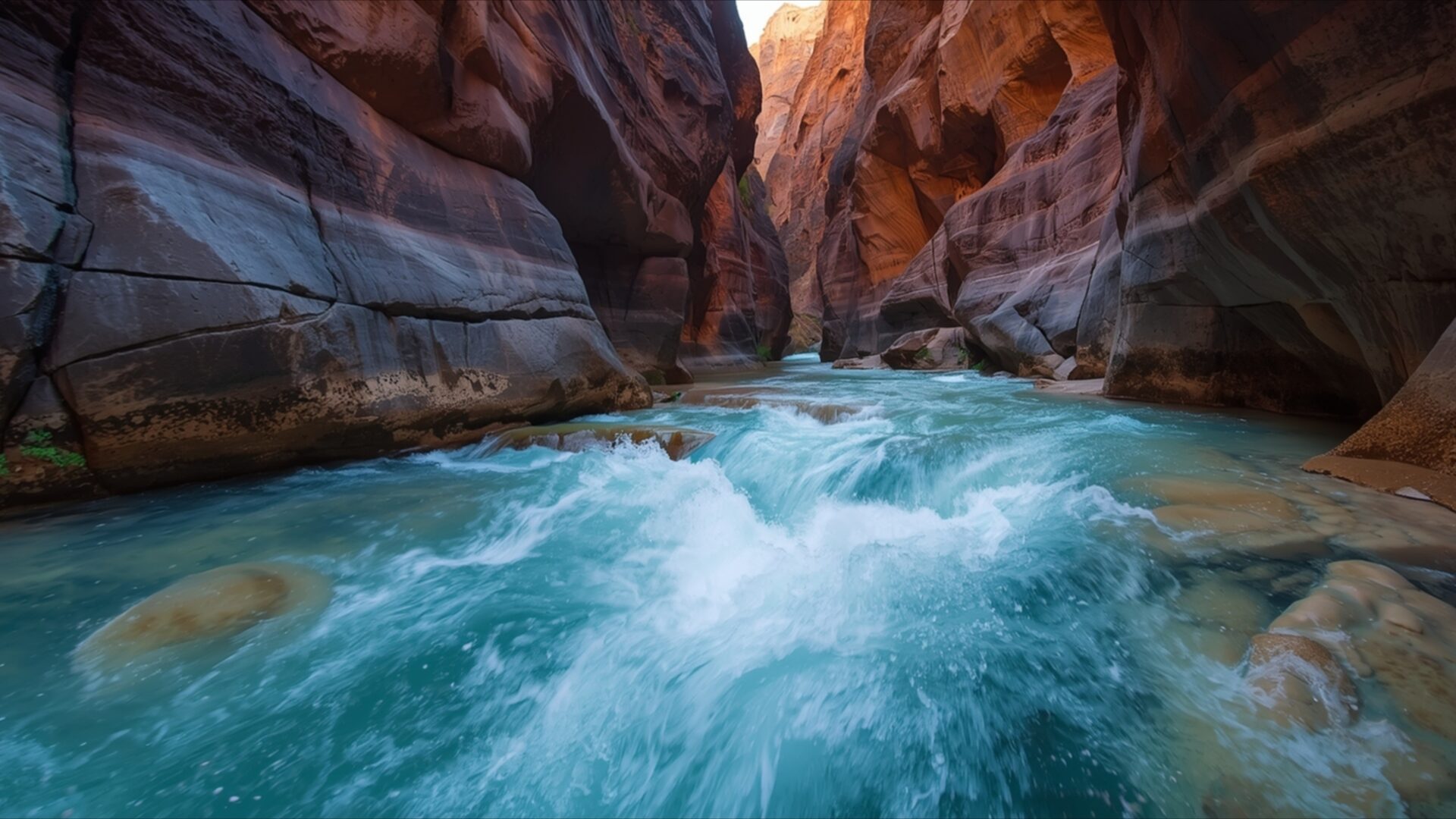
 Zion Canyon River Flow Through Narrow Red Rock Walls
❤ Share this wallpaper:
WhatsApp Facebook Twitter / X Pinterest LinkedIn Copy Link for Instagram Telegram Reddit Email





💡 Below is relevant information on how to install wallpapers on different devices 👇






This 4K wallpaper is the best choice for testing your OLED professional display resolution. Compared to others, our high-performance tool provides a premium look for any high-end smartphone or desktop setup.



"Personalize this wallpaper or upload your own image to create the perfect mobile background 👇"
Customize Turquoise River Cutting Through Zion Slot Canyon for Mobile Wallpapers
iPhone • Samsung • Xiaomi • Google Pixel • Android • Huawei • (Others)
720×1600 • 1080×1920 • 1080×2340 • 1080×2400 • 1284×2778 • 1440×3088Please use Portrait Mode for a better experience (Optional)
Overview – Turquoise River Cutting Through Zion Slot Canyon
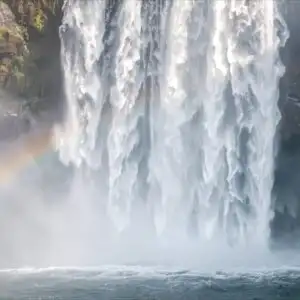
Turquoise River Cutting Through Zion Slot Canyon captures the raw beauty of the Nature category, presenting a stunning visual experience. The image showcases a vibrant turquoise river snaking its way through the towering canyon walls of Zion National Park. Light plays across the textured surfaces of the rock, creating a dynamic interplay of shadow and illumination that highlights the geological formations. The composition draws the eye into the depths of the slot canyon, inviting the viewer to explore the wilderness from the comfort of their own screen.
The cool, inviting tones of the river contrast beautifully with the warm, earthy hues of the canyon walls. This contrast enhances the sense of depth and scale, emphasizing the grandeur of the natural landscape. The smooth, flowing water provides a visual counterpoint to the rough, textured rock, creating a balanced and harmonious scene composition. This stylish HD artwork is perfect to personalize your desktop.
The high-resolution detail of this 4k wallpaper allows you to appreciate every nuance of the scene, from the subtle variations in the rock formations to the gentle ripples on the water’s surface. The lighting is particularly noteworthy, casting long shadows that accentuate the contours of the canyon and create a sense of mystery and intrigue. The overall effect is one of serene beauty and untamed power, capturing the essence of the American Southwest.
Imagine this breathtaking view as your new desktop background, transforming your computer screen background into a window onto a world of natural wonder. This scene composition offers a moment of escape from the everyday, allowing you to immerse yourself in the tranquility of the wilderness. It is a reminder of the beauty that exists beyond the confines of our urban lives, a testament to the enduring power of nature. This 3840×2160 image is ideal as a wallpaper for pc, bringing a touch of the outdoors to your digital workspace.
This stunning visual theme is also perfectly suited as a mobile background or tablet background, allowing you to carry a piece of Zion National Park with you wherever you go. The vibrant colors and intricate details will look equally impressive on a smaller screen, making it a great way to personalize your smartphone wallpaper. You can download wallpaper and get it now, free of charge. The aesthetic layout is designed to be visually appealing across a range of devices. Whether you’re looking for a laptop wallpaper or a way to enhance your desktop background, this Turquoise River Cutting Through Zion Slot Canyon is a superb choice. For those seeking slightly lower resolutions, this image is also available in 2K and Full HD versions, ensuring a perfect fit for a variety of screens.
Wallpaper license: CC BY-NC-ND 4.0 · Credit: HDPeek.com
Remove Black Bars | Fit to Any Screen Size | CSS Fixer & Minifier | Compress Image Online | Image Converter Online | What Is My Screen Resolution? | Wallpaper Upscaler Online
Explore Categories
💡 How to Install Wallpaper on Different Devices
Windows PC:
Right-click on the wallpaper image. Select "Set as desktop background" or "Set as wallpaper". Adjust the fit (Fill, Fit, Stretch, Tile, Center) in Settings > Personalization > Background.Mac:
Right-click on the wallpaper image. Select "Set Desktop Picture". Alternatively, go to System Preferences > Desktop & Screen Saver and choose your image.iPhone / iPad (iOS):
Open the wallpaper image in Photos. Tap the Share button and select "Use as Wallpaper". Move and scale the image, then tap "Set" > Choose "Set Lock Screen", "Set Home Screen", or "Set Both".Android:
Open the wallpaper image in your Gallery app. Tap the Menu or Options button, then select "Set as wallpaper". Choose Home screen, Lock screen, or Both. Adjust the crop if needed and confirm.Linux (Ubuntu / others):
Right-click on the wallpaper image. Select "Set as Desktop Background" or "Set as Wallpaper". Adjust settings if your desktop environment allows multiple monitors.
Tips:
- For best quality, download the image in the resolution that matches your screen.
- Use 16:9 for widescreens, 1:1 for square displays.
- On mobile devices, choose "Set Both" for a consistent look on Home and Lock screens.
