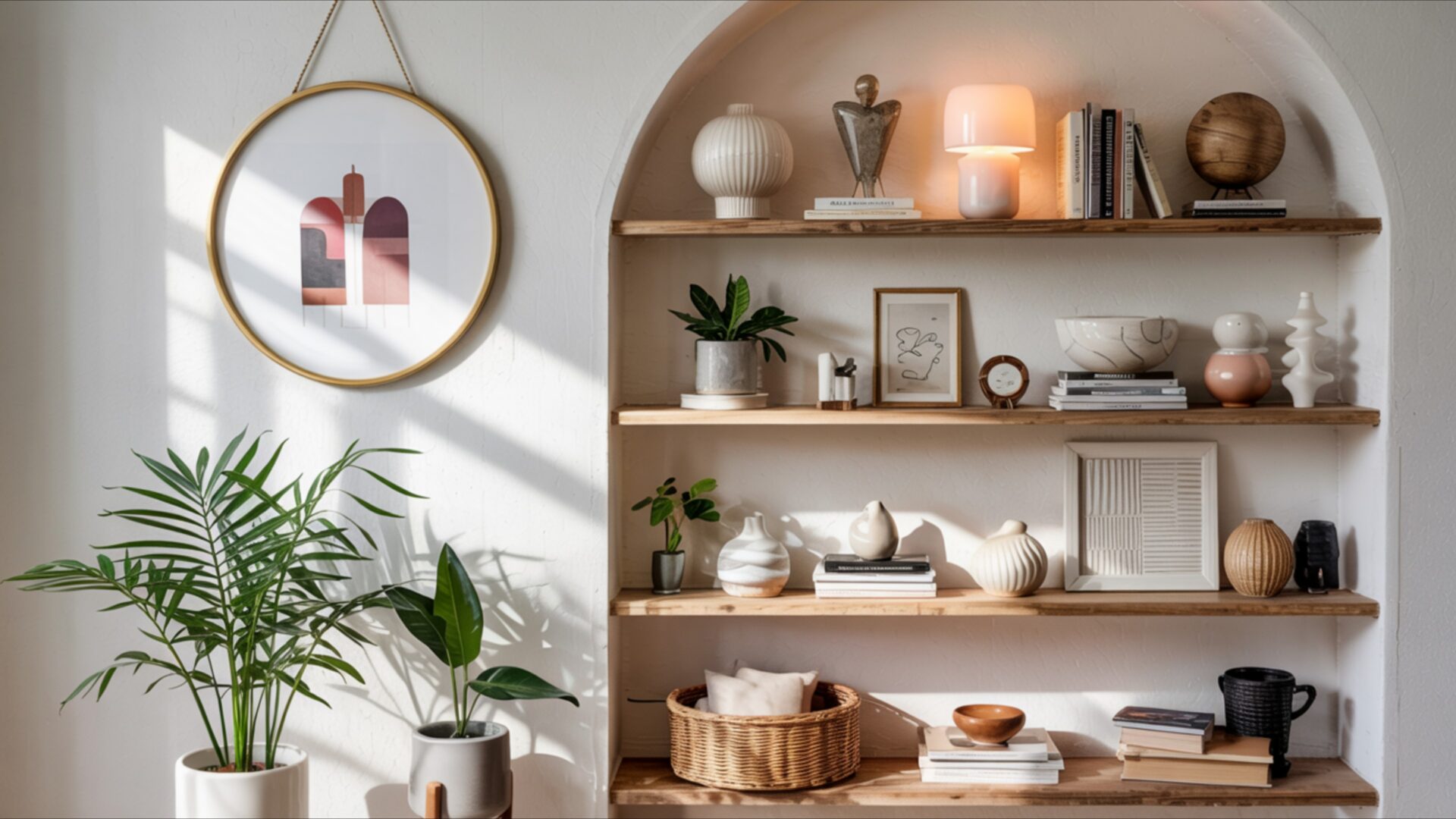
🌸 Minimal Shelf Decor in Warm Cozy Lighting 4K UHD (3840x2160) Wallpaper


❤ Share this wallpaper:
WhatsApp Facebook Twitter / X Pinterest LinkedIn Copy Link for Instagram Telegram Reddit Email





💡 Below is relevant information on how to install wallpapers on different devices 👇





This 4K wallpaper is the best choice for testing your OLED professional display resolution. Compared to others, our high-performance tool provides a premium look for any high-end smartphone or desktop setup.






"Personalize this wallpaper or upload your own image to create the perfect mobile background 👇"
Customize Minimal Shelf Decor in Warm Cozy Lighting for Mobile Wallpapers
iPhone • Samsung • Xiaomi • Google Pixel • Android • Huawei • (Others)
720×1600 • 1080×1920 • 1080×2340 • 1080×2400 • 1284×2778 • 1440×3088Please use Portrait Mode for a better experience (Optional)
Overview – Minimal Shelf Decor in Warm Cozy Lighting
Minimal Shelf Decor in Warm Cozy Lighting captures the essence of the Aesthetic category with its carefully arranged objects and inviting light. The scene presents a study in understated elegance, focusing on the interplay of light and shadow across a collection of simple, yet thoughtfully chosen items. The composition emphasizes horizontal lines, drawing the eye along the length of the shelf and creating a sense of calm and order. The warm color palette, dominated by soft browns, creams, and subtle golds, enhances the feeling of coziness, making it a welcoming visual theme for any space.
The arrangement of objects on the shelf is deliberately minimal, avoiding clutter and promoting a sense of spaciousness. Each item seems to have been selected for its texture and form, contributing to the overall aesthetic layout. A ceramic vase, a stack of books, and a small potted plant are among the elements that create a balanced and harmonious scene composition. The lighting plays a crucial role, casting gentle shadows that add depth and dimension to the display. It is a stylish HD artwork that brings a sense of peace and tranquility.
The 3840×2160 resolution ensures that every detail is rendered with clarity and precision, from the subtle grain of the wooden shelf to the delicate texture of the plant’s leaves. This 4k wallpaper is perfect for those who appreciate the beauty of simplicity and the power of carefully curated spaces. It offers a visual escape from the chaos of everyday life, inviting viewers to pause and appreciate the quiet beauty of the moment. The image is designed to personalize your desktop with a touch of understated sophistication.
This desktop background is more than just a pretty picture; it’s an invitation to embrace a more mindful and intentional way of living. The minimal aesthetic encourages a focus on quality over quantity, reminding us to appreciate the simple pleasures in life. It is a beautiful choice for a computer screen background, adding a touch of warmth and personality to your digital workspace. Get it now as a free wallpaper and transform your screen into a haven of calm.
Consider this high-resolution image for your laptop wallpaper or tablet background, bringing a sense of serenity to your mobile background as well. You can download wallpaper free of charge and enjoy the calming effect of this carefully curated scene wherever you go. The availability of this Minimal Shelf Decor in Warm Cozy Lighting visual theme extends to 2K and Full HD versions, ensuring optimal display quality across a range of devices.
Wallpaper license: CC BY-NC-ND 4.0 · Credit: HDPeek.com
Remove Black Bars | Fit to Any Screen Size | CSS Fixer & Minifier | Compress Image Online | Image Converter Online | What Is My Screen Resolution? | Wallpaper Upscaler Online
Explore Categories
💡 How to Install Wallpaper on Different Devices
Windows PC:
Right-click on the wallpaper image. Select "Set as desktop background" or "Set as wallpaper". Adjust the fit (Fill, Fit, Stretch, Tile, Center) in Settings > Personalization > Background.Mac:
Right-click on the wallpaper image. Select "Set Desktop Picture". Alternatively, go to System Preferences > Desktop & Screen Saver and choose your image.iPhone / iPad (iOS):
Open the wallpaper image in Photos. Tap the Share button and select "Use as Wallpaper". Move and scale the image, then tap "Set" > Choose "Set Lock Screen", "Set Home Screen", or "Set Both".Android:
Open the wallpaper image in your Gallery app. Tap the Menu or Options button, then select "Set as wallpaper". Choose Home screen, Lock screen, or Both. Adjust the crop if needed and confirm.Linux (Ubuntu / others):
Right-click on the wallpaper image. Select "Set as Desktop Background" or "Set as Wallpaper". Adjust settings if your desktop environment allows multiple monitors.
Tips:
- For best quality, download the image in the resolution that matches your screen.
- Use 16:9 for widescreens, 1:1 for square displays.
- On mobile devices, choose "Set Both" for a consistent look on Home and Lock screens.
