🎉️ New Year Champagne Glasses With City Lights Behind 4K UHD (3840x2160) Wallpaper
 Warm Glow of Valentine Gifts: A Cozy Romantic Setup
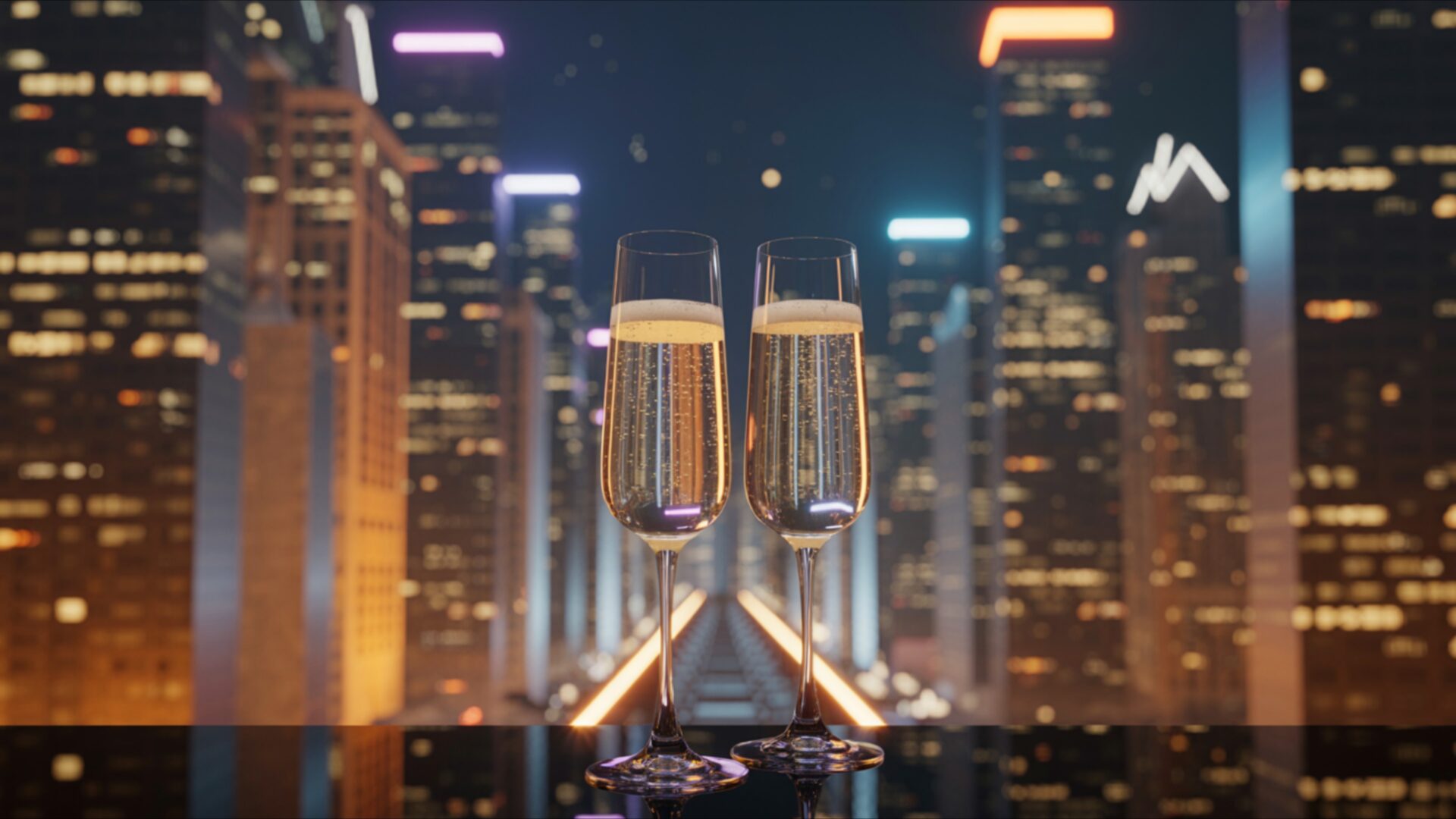
 Bright Scene: Night Celebration with Champagne and City Glow
❤ Share this wallpaper:
WhatsApp Facebook Twitter / X Pinterest LinkedIn Copy Link for Instagram Telegram Reddit Email





💡 Below is relevant information on how to install wallpapers on different devices 👇





This 4K wallpaper is the best choice for testing your OLED professional display resolution. Compared to others, our high-performance tool provides a premium look for any high-end smartphone or desktop setup.





"Personalize this wallpaper or upload your own image to create the perfect mobile background 👇"
Customize New Year Champagne Glasses With City Lights Behind for Mobile Wallpapers
iPhone • Samsung • Xiaomi • Google Pixel • Android • Huawei • (Others)
720×1600 • 1080×1920 • 1080×2340 • 1080×2400 • 1284×2778 • 1440×3088Please use Portrait Mode for a better experience (Optional)
Overview – New Year Champagne Glasses With City Lights Behind
New Year Champagne Glasses With City Lights Behind captures the essence of the Seasonal & Events category, presenting a celebratory scene in sharp detail. The image focuses on two champagne glasses, their delicate curves reflecting the soft glow of city lights in the distance. The composition creates a sense of depth, drawing the viewer into an elegant moment of anticipation. The light plays across the surface of the glass, highlighting the effervescence of the champagne within.
The overall visual theme is one of understated luxury, where the blurred cityscape serves as a atmospheric backdrop to the intimate foreground. The bright scene is carefully balanced, preventing any single element from overpowering the others. Instead, the city lights provide a gentle illumination, enhancing the festive glow emanating from the glasses. The high-resolution detail allows one to almost feel the cool smoothness of the glass and hear the gentle clinking sound of a toast.
This 4k wallpaper is perfect to personalize your desktop, bringing a touch of sophisticated celebration to your digital space. The arrangement of the glasses, slightly off-center, creates a dynamic tension, while the bokeh effect applied to the city lights adds a dreamy, ethereal quality. The stylish HD artwork captures the new year vibe without being overly sentimental, making it a suitable desktop background for any time of year.
The color palette is restrained, dominated by warm golds and soft blues, reflecting the ambient light of the night celebration. The textures are subtly rendered, from the smooth glass to the slightly out-of-focus city buildings. It’s a scene composition that invites contemplation, a quiet moment amidst the bustling energy of a new year’s eve. You can download wallpaper now to transform your computer screen background into a window overlooking a festive cityscape. This is an instant download to bring a sense of occasion to your laptop wallpaper.
Consider this Ultra HD (UHD) image as a way to elevate your digital experience. It’s a free wallpaper that offers a refined aesthetic layout, ideal for those who appreciate subtle elegance. Available in various resolutions, including the crisp 3840×2160 4K version for maximum detail, as well as readily accessible 2K and Full HD versions, New Year Champagne Glasses With City Lights Behind ensures a perfect fit for any screen size.
Wallpaper license: CC BY-NC-ND 4.0 · Credit: HDPeek.com
Remove Black Bars | Fit to Any Screen Size | CSS Fixer & Minifier | Compress Image Online | Image Converter Online | What Is My Screen Resolution? | Wallpaper Upscaler Online
Explore Categories
💡 How to Install Wallpaper on Different Devices
Windows PC:
Right-click on the wallpaper image. Select "Set as desktop background" or "Set as wallpaper". Adjust the fit (Fill, Fit, Stretch, Tile, Center) in Settings > Personalization > Background.Mac:
Right-click on the wallpaper image. Select "Set Desktop Picture". Alternatively, go to System Preferences > Desktop & Screen Saver and choose your image.iPhone / iPad (iOS):
Open the wallpaper image in Photos. Tap the Share button and select "Use as Wallpaper". Move and scale the image, then tap "Set" > Choose "Set Lock Screen", "Set Home Screen", or "Set Both".Android:
Open the wallpaper image in your Gallery app. Tap the Menu or Options button, then select "Set as wallpaper". Choose Home screen, Lock screen, or Both. Adjust the crop if needed and confirm.Linux (Ubuntu / others):
Right-click on the wallpaper image. Select "Set as Desktop Background" or "Set as Wallpaper". Adjust settings if your desktop environment allows multiple monitors.
Tips:
- For best quality, download the image in the resolution that matches your screen.
- Use 16:9 for widescreens, 1:1 for square displays.
- On mobile devices, choose "Set Both" for a consistent look on Home and Lock screens.
