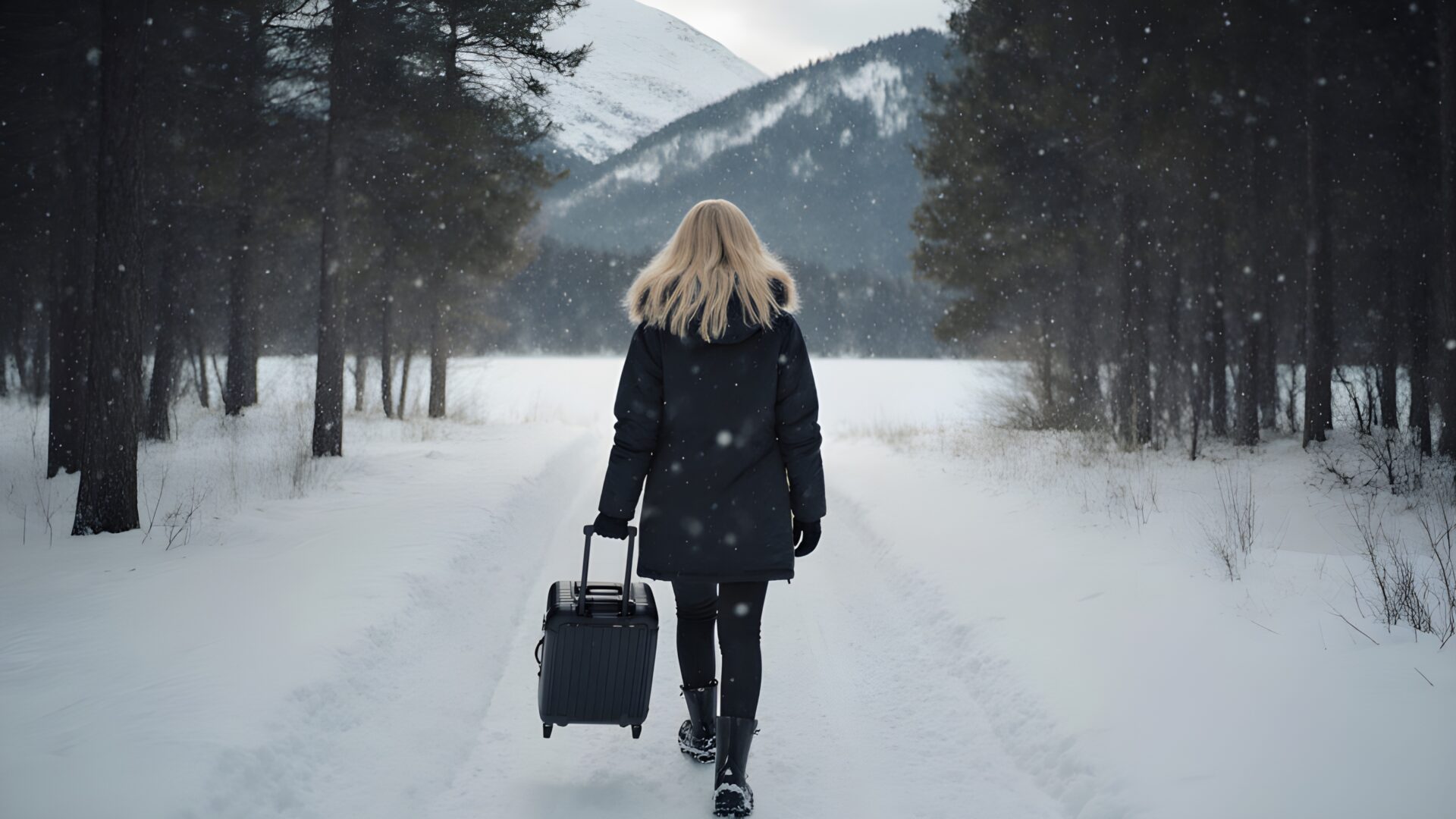
📸️ Traveler Walking Through Snowy Path 4K UHD (3840x2160) Wallpaper

❤ Share this wallpaper:
WhatsApp Facebook Twitter / X Pinterest LinkedIn Copy Link for Instagram Telegram Reddit Email





💡 Below is relevant information on how to install wallpapers on different devices 👇





This 4K wallpaper is the best choice for testing your OLED professional display resolution. Compared to others, our high-performance tool provides a premium look for any high-end smartphone or desktop setup.






"Personalize this wallpaper or upload your own image to create the perfect mobile background 👇"
Customize Traveler Walking Through Snowy Path for Mobile Wallpapers
iPhone • Samsung • Xiaomi • Google Pixel • Android • Huawei • (Others)
720×1600 • 1080×1920 • 1080×2340 • 1080×2400 • 1284×2778 • 1440×3088Please use Portrait Mode for a better experience (Optional)
Overview – Traveler Walking Through Snowy Path
“Traveler Walking Through Snowy Path” captures the serene essence of the People & Lifestyle category, presenting a solitary figure amidst a winter landscape. This desktop wallpaper invites viewers into a scene dominated by the crisp, clean aesthetic of snow-covered ground and frosted trees. The composition draws the eye along the winding path, creating a sense of depth and journey.
The image focuses on a traveler, their presence adding a human element to the otherwise untouched wilderness. Light filters subtly through the dense forest canopy, casting long shadows that accentuate the texture of the snow. It is a stylish HD artwork that evokes feelings of peaceful solitude and the quiet beauty of winter. The high resolution detail allows you to observe the intricate patterns formed by the snow on the branches and the subtle variations in the traveler’s attire.
The cool tones of the snow and sky are balanced by the warmer hues of the traveler’s clothing, providing a focal point within the vast expanse of white. This wallpaper pc offers a calming desktop background, ideal for those seeking a moment of tranquility amidst a busy day. The scene suggests a personal journey, a theme reinforced by the solitary figure venturing into the unknown. Consider this best wallpaper to personalize your desktop with a touch of winter’s quiet majesty.
This laptop wallpaper is more than just a pretty picture; it’s an invitation to reflect and appreciate the simple beauty of nature. If you are looking to download wallpaper that brings a sense of calm and adventure to your digital space, this is an excellent choice. The available 4K version provides the highest quality visual experience, showcasing every detail of the snowy landscape. Free wallpaper options are available, including 2K and Full HD versions, ensuring compatibility with a wide range of devices and screen resolutions. Experience the beauty of “Traveler Walking Through Snowy Path” in stunning clarity.
Wallpaper license: CC BY-NC-ND 4.0 · Credit: HDPeek.com
Remove Black Bars | Fit to Any Screen Size | CSS Fixer & Minifier | Compress Image Online | Image Converter Online | What Is My Screen Resolution? | Wallpaper Upscaler Online
Explore Categories
💡 How to Install Wallpaper on Different Devices
Windows PC:
Right-click on the wallpaper image. Select "Set as desktop background" or "Set as wallpaper". Adjust the fit (Fill, Fit, Stretch, Tile, Center) in Settings > Personalization > Background.Mac:
Right-click on the wallpaper image. Select "Set Desktop Picture". Alternatively, go to System Preferences > Desktop & Screen Saver and choose your image.iPhone / iPad (iOS):
Open the wallpaper image in Photos. Tap the Share button and select "Use as Wallpaper". Move and scale the image, then tap "Set" > Choose "Set Lock Screen", "Set Home Screen", or "Set Both".Android:
Open the wallpaper image in your Gallery app. Tap the Menu or Options button, then select "Set as wallpaper". Choose Home screen, Lock screen, or Both. Adjust the crop if needed and confirm.Linux (Ubuntu / others):
Right-click on the wallpaper image. Select "Set as Desktop Background" or "Set as Wallpaper". Adjust settings if your desktop environment allows multiple monitors.
Tips:
- For best quality, download the image in the resolution that matches your screen.
- Use 16:9 for widescreens, 1:1 for square displays.
- On mobile devices, choose "Set Both" for a consistent look on Home and Lock screens.
